Discussions
Discussions let project collaborators leave contextual comments on a graph and work through feedback together. Discussions are available to authenticated users who can access the project, including the owner, direct-share collaborators, and collaborators who have access through a team. Public viewers cannot create or participate in discussions.
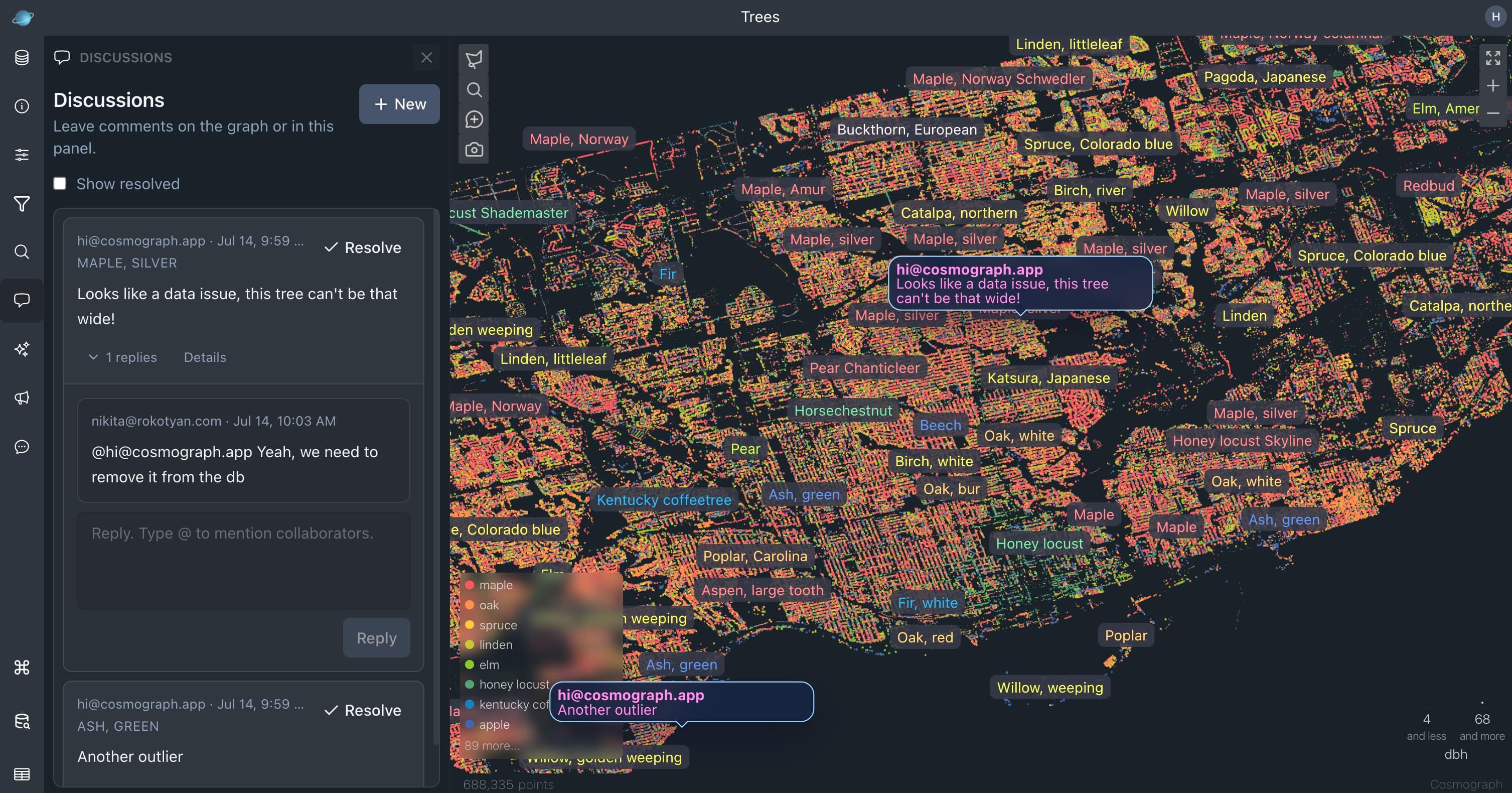
Project sharing does not grant edit access to the owner’s source project. Shared collaborators can still use Discussions to review a graph, reply, mention teammates, and resolve work. See Sharing for the project-access model.
Open Discussions
Open a saved project and select the Discussions panel from the project interface. You can also open a discussion from a graph anchor; the project opens the relevant discussion and focuses the associated point when applicable.
Start a discussion
There are three kinds of discussion anchors:
- Panel discussion: a general discussion with no graph anchor.
- Point discussion: attached to a graph point.
- Coordinate discussion: attached to a location in graph space, so it stays with that location as you pan and zoom.
To start a panel discussion, open the Discussions panel and choose the option to start a new discussion. Enter the message and submit it.
To anchor a discussion on the graph, select the comment button in the graph controls, then click a point or an empty location. The Discussions panel opens with the draft anchored to that point or coordinate. Add the message and submit it.
Link-anchored discussions are not currently supported.
Reply and mention collaborators
Open a discussion to read its replies and use the reply composer to continue the conversation. Type @ in a discussion or reply to find collaborators who can access the project, then select a person from the suggestions.
You can edit or delete your own comments. A discussion can be resolved when the work is complete and reopened if more conversation is needed. Selecting a point-anchored discussion focuses that point in the graph.
Filter resolved discussions
Resolved discussions are hidden from the active list by default. Use Show resolved in the Discussions panel to include them, then reopen a discussion if it needs more work.
Read status and notifications
The Discussions panel shows unread messages and unread mentions. Opening a discussion marks it as read and clears the matching discussion mention state when applicable.
Mention notifications can also appear in the application notifications list. Selecting a discussion from a notification opens the project and the relevant discussion.
Realtime collaboration
Project discussions update in realtime for collaborators. New comments, replies, edits, resolutions, and read-state changes are reflected when the project is open in another browser window or by another collaborator.
Discussion access follows project access. If a direct share is revoked or a person loses access through a team, they can no longer open or participate in that project’s discussions.
For project access options, see Sharing. For team membership and access, see Plans.